RSS
 

Archive for the ‘Tips & Tutorials’ Category

iPhone friendly Pixelpost

19 May

iphone

UPDATE: I added the lines to recognize Android, iPod Touch and Palm WebOS!

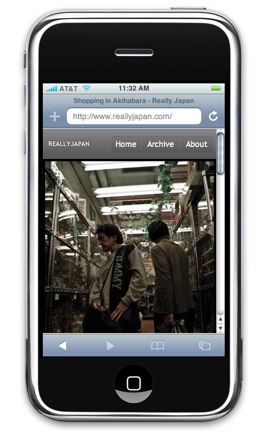
Chris, a reader of this website (and a cool photographer, check his website Intelligent Cloud), asked me how I did to setup an iPhone friendly version of ReallyJapan Photoblog and automatically redirect the users with an iPhone to this website.

As you know, ReallyJapan is using Pixelpost, a free photo blog application. Pixelpost has many great templates, and one of them, Hoo is an iPhone optimized template.

The problem is that in Pixelpost control panel you can select only one template, and there’s no option to specify one template for certain users and a different one for the others.

So, while the Hoo template is a great solution for iPhone users, if you configure Pixelpost to use this template, all your users will see the Hoo template, no matter if they’re using iPhone, Internet Explorer, Firefox or a cyberdeck Ono-Sendai (in that case they’ll probably just look to the code).

So, what do we need to do?
Simple: When someone visits our Pixelpost photoblog, check if they’re using iPhone, and just in that case tell Pixelpost to use Hoo template instead of the one we selected in the control panel.

It requires some changes in a php file, but it’s very simple. Let’s start:

  1. Download Hoo template, unzip it and upload the folder in your web host (/template/)
  2. Now we need to edit the index.php of your Pixelpost installation (/index.php) to specify the Hoo template just for iPhone users visiting your photoblog.
    Remember: Do a backup or something. It’s better safe than sorry if something goes wrong!

    A. First thing to do is to Search and Replace All the text $cfgrow['template'] to $template_dir.
    $cfgrow['template'] is the variable where the name of the selected template (the one you chose on the Pixelpost control panel) is stored.

    B. Now Search the file for this text: // get config
    You’ll find this code:

    // get config
    if($cfgrow = sql_array(“SELECT * FROM “.$pixelpost_db_prefix.”config”))
    {
    $upload_dir = $cfgrow['imagepath'];
    }else{
    $extra_message= “Coming Soon. Not Installed Yet. Cause #1″;
    show_splash($extra_message,”templates”);

    }

    What does it do? Ok, basically it’s reading the configuration of your Pixelpost installation from the database (you know all the stuff you selected in Pixelpost control panel like paths, name of the blog and.. the template).
    The first case of the IF statement means Pixelpost has been installed while the ELSE case means (as you can see in the extra_message) that.. well, it’s not installed yet.

    So, let’s add some code here (blue text):

    // get config
    if($cfgrow = sql_array(“SELECT * FROM “.$pixelpost_db_prefix.”config”))
    {

    if (stristr($_SERVER['HTTP_USER_AGENT'], ‘Android’) ||
    stristr($_SERVER['HTTP_USER_AGENT'],’webOS’) ||
    stristr($_SERVER['HTTP_USER_AGENT'],’iPhone’) ||
    stristr($_SERVER['HTTP_USER_AGENT'],’iPod’)
    ) {

    $template_dir=”hoo”;
    }else{
    $template_dir=$cfgrow['template'];
    }

    $upload_dir = $cfgrow['imagepath'];
    }else{
    $extra_message= “Coming Soon. Not Installed Yet. Cause #1″;
    show_splash($extra_message,”templates”);
    }

    Basically: If Pixelpost has been installed (IF case 1), check if the user agent of the visitor is iPhone, iPod, Android or webOS.
    In that case set $template_dir to ‘hoo’ (the hoo template, in the folder /template/hoo on your webhosting).
    Otherwise set $template_dir to $cfgrow['template'] (the default template you selected on Pixelpost control panel).

    C. Save the file and..

That’s it!
From now on the iPhone users will see the Hoo template while all the other users will see the default template.

If you have any question please write a comment!
 

10 Great Pixelpost Templates

27 Apr

What’s great about Pixelpost is the wide selection of templates and addons available.. and if you’re not satisfied, creating a new cool template or a useful addon is relatively easy.

So, let’s take a look to the best Pixelpost templates out there.

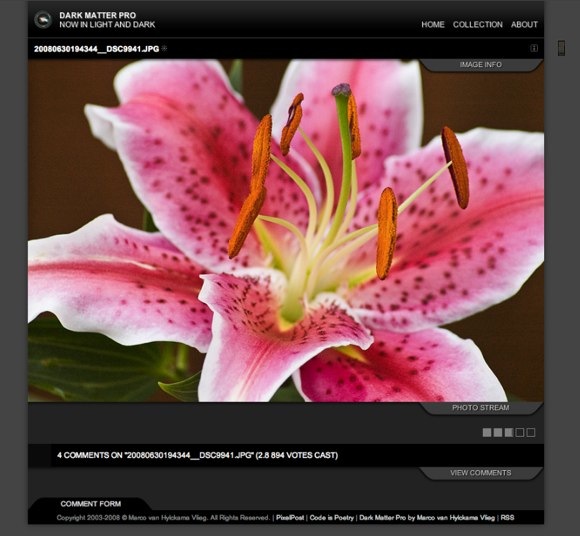
Dark Matter
Dark Matter is a great theme with some cool fancy Ajax animations and a carousel effect to browse your photos.
You can find a Free version of this template and a Pro version with various extras (it’s $49.95). And yes,
ReallyJapan is using a customized version of the free version.

1.jpg

Free version Demo
Pro version Demo
Dark Matter’s Home Page
Download Dark Matter

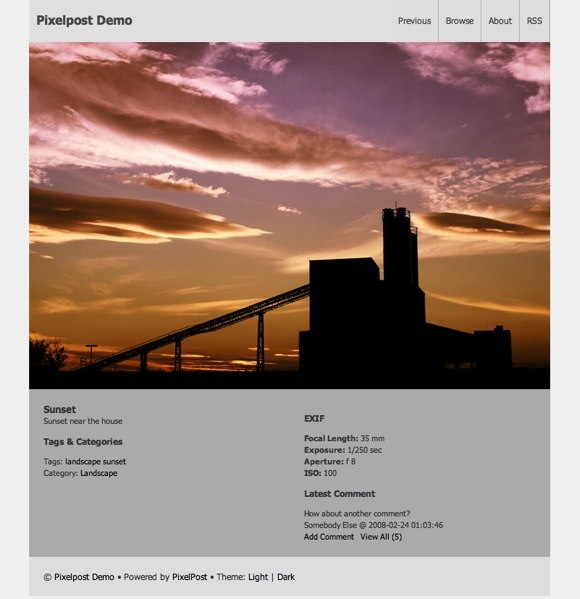
Switchy
Switchy is an interesting template that changes its layout according to the orientation of the photo.
The layout is very clean
and easy to customize.
Sunset • Pixelpost Demo.jpg

Check the demo here
Download Switchy

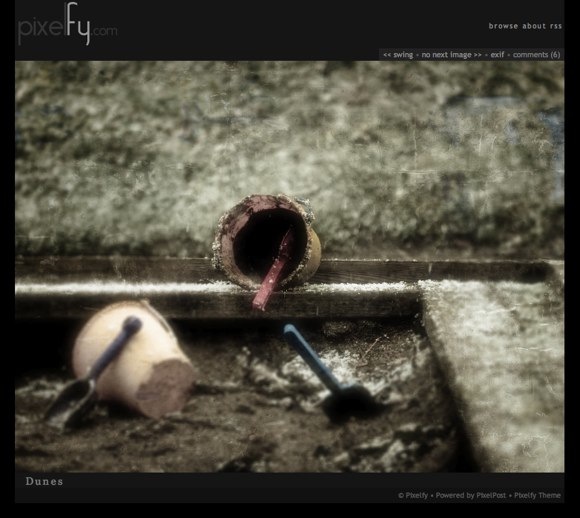
Pixelfy
Very clean and simple layout that let’s your photograph speek for it self. It wraps around both big and small images.
skitched-20090427-153430.jpg

Check the demo here
Download Pixelfy

Delicious
Delicious is a fresh and tastey photoblogging template for Pixelpost. It’s a very nice theme and I’ve used it for the first version of ReallyJapan.com.
x2-1.jpg

Check the demo here
Download the updated version by Andrew here

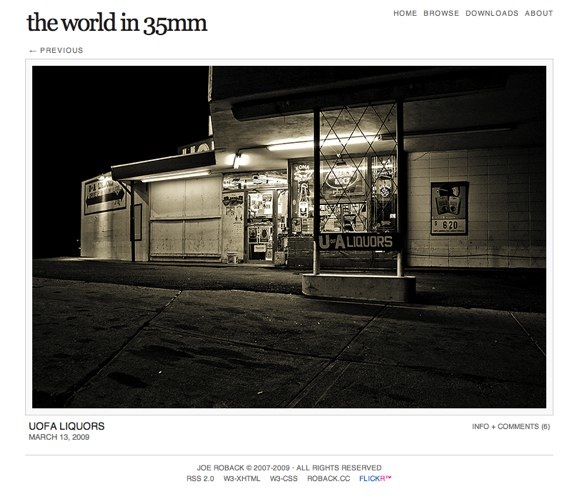
The World in 35mm
An extremely clean, modern and simple template for pixelpost you’re going to love, I do. One of the best IMO.UofA Liquors | The World in 35mm | © Joe Roback, 2007-2009. All Rights Reserved.-1.jpg

Try the demo here
Download from here

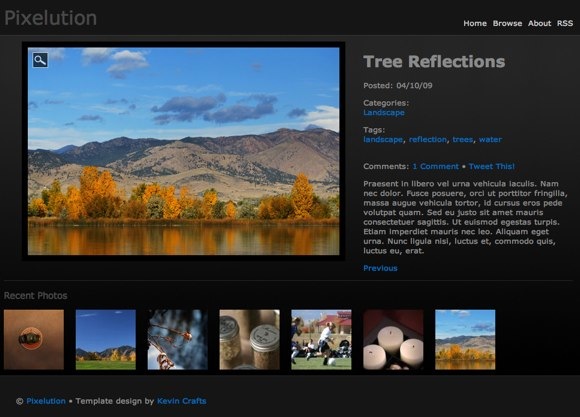
Pixelution
If you want a template with an unusual layout and some interesting features, check this out.

Tree Reflections • Pixelution.jpg

Check the demo here
Download Pixelution

Hoo! (Pixelpost template for iPhone)
Well, have you ever visited ReallyJapan.com using your iPhone? Well, you should, because it uses this template to offer you an iPhone customized version.
Now, you need to mess a little with php and your pixelpost installation to have the browser detect if you’re using an iPhone or a regular browser and switch the template… It’s not hard, but it’s not extremely easy.. I did it and maybe, if someone is interested, I could write a small tutorial on how to use this template in the future..
2x.jpg

Download Hoo

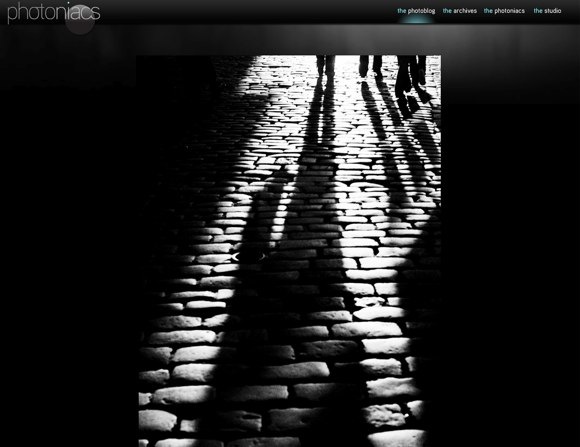
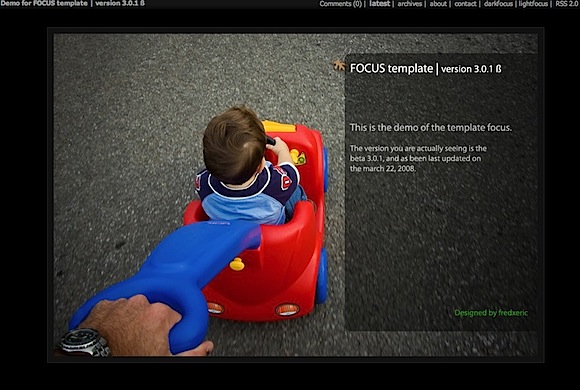
Focus
A simple, dark and clean template.
Demo for FOCUS template _._ Your are viewing the new template focus 3.0.1 beta.jpg
Check the demo here
Download Focus

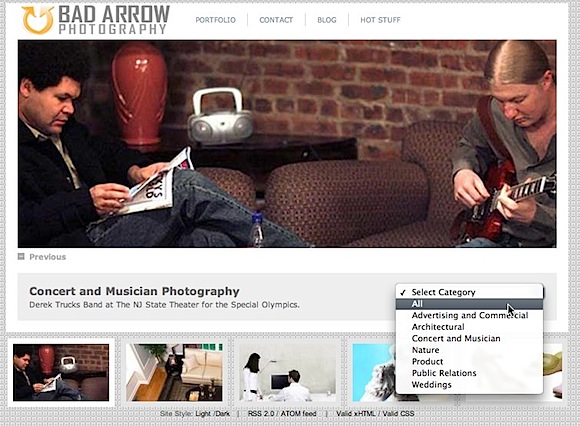
Photographer’s Template
A template geared more towards a self promotional site for photographers.

bad arrow photography __ Concert and Musician Photography __ 908.500.0403.jpg

Try the demo here
Download the template

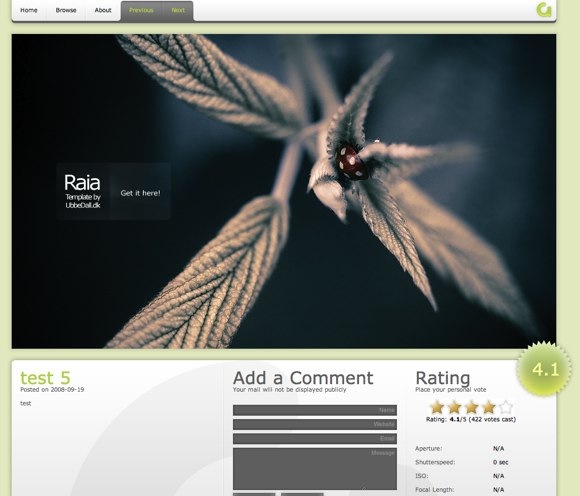
Raia
A very nice template with a new, fresh web2.0 look.

Raia demo.jpg
Try the demo here
Download Raia


Guide to PhotoBlogging – Introduction

17 Mar

Introductionguide1.jpg

I’ve started Really Japan Photo Blog and uploaded the very first photo about one year ago.
At the beginning I wasn’t very sure to be able to update the photo blog often, it was not the first time I was starting a blog, but all the previous attempts ended up with failure, after few months.

Fortunately that has not been the case of ReallyJapan.

A lot has happened in this year of ReallyJapan. I’ve learnt many things on photography, met many great photographers, looked at some incredible shots on the web.. and I think if I didn’t start photoblogging, I would have lost many opportunities.

So, after 1 year of photoblogging, I thought it would be cool to write some kind of Guide to Photoblogging.
But, I’m going to tell you a secret: I’m not an amazing photographer or a super blogger, my website is not making trillions of visitors neither, so don’t have huge expectations..

Anyway, I hope this Guide will help all of you who are considering to open a photo blog!

What is a photoblog?

A photoblog (a.k.a. photolog or phlog) is a form of photo sharing and publishing in the format of a blog, but differentiated by the predominant use of and focus on photographs rather than text.

Why photoblogging?

There could be many reasons to start your own photoblog. You may want to show your amazing works to people from all around the world, and consequently make a lot of money with advertising & sales of your photography. Honestly, in that case you’re going to have rough times ahead, good luck.

But if your demands are a little more modest, there are many positive points on opening a photo blog.

Top Advantages of starting a Photo Blog

  • It’s a great way to keep you constantly motivated.
    I opened Really Japan Photo Blog just few months after buying my first DSLR. The main reason? I wanted to learn how to take photos, and I was inspired by many cool photo bloggers who were sharing their photos on line. As soon as people started visiting my photo blog and writing some comments on the photos I knew I had to post something slightly better the next day.. the day after, and the day after that.
    So.. yes, a photo blog is a
    great way to keep you constantly motivated to take new photos or process the ones you have.
  • Networking
    Some months ago I had dinner with a very nice guy from Spain visiting Tokyo. I’ve never seen him before that day. Well, he’s a photo blogger, Guillermo – Desenfocado, and I’ve met him through photo blogging. I’ve met many other photo bloggers, exchanged emails, ideas, and tips on photography.
    If you start visiting and commenting other photo blogs, they’ll surely do the same and they’ll visit and comment yours.

    At the same time, keep in mind that the majority of people visiting your blog will now write comments, but they’ll surely keep following you. Sometimes they will write you emails, saying you that they like your photos. Then who knows, maybe some of these people will become real friends, or maybe.. you’ll find great job opportunities!
  • Learn from other photo bloggers
    There are many amazing talented photo bloggers (well.. photographers) on Internet. Besides writing comments on their photos, look to their photos! Usually, if they use Pixelpost, or Flickr, you can see the EXIF informations for each photo they post. That’s great information if you are a beginner and you want to learn more (as I did starting Really Japan). Having access to the EXIF informations of a photo gives you all the ‘settings’ the photographer used to take that photo (iso, aperture, shutter speed, lens used, and so on).
  • It’s like blogging… without words
    Especially if English is not your first language, starting a ‘real’ blog could be troublesome. Instead, a photo blog is easier to manage, your photos are going to speak for you.
  • You’re going to receive a lot of comments & critiques
    When you open a photo blog.. ask, implore, for critiques on your works. Maybe you are not going to love comments like ‘U SUX SUX SUX!‘, but other – more constructive – critiques will surely help you.
    And don’t feel upset if someone points out what he doesn’t like about that photo, instead remember, it’s something you should appreciate. It’s very easy to write positive things, but it’s harder to start writing a critique.
  • It will become your home, on Internet.
    A photoblog is a blog, and a blog is a website right? Basically when you open a website is like you’re opening a shop, or maybe like opening the door of your home to accept some guests.
    Sure, you can just don’t care about the graphic template you’re going to use, don’t create a rss feed or saving all your images in 10 megabytes TIFF. Sure, you can do it. But come on, you should welcome your guests right?
    When you start a photo blog you should think about the people who’re going to visit it. Try to select a cool name, choose a nice template and modify it to adapt to your style (if you already know some web design stuff you can work on it from scratch too). Learn some basic html, think about the plugins you could use to enhance the experience for your visitors.. it’s like opening your art gallery!
    Also, it’s incredibly important to
    keep track of how your photo blog is doing, where your visitors are coming from and what keywords they are using to reach you. Maybe it’s not important at the beginning, but it will help you if you plan to increase the traffic to your blog later.
    There are many great services that generate detailed statistics about the visitors to a website, for example
    Google analytics (probably the best one, and free) or Clicky (great for real time tracking, and you can check the statistics in real time with your iPhone too).. I have them both
  • It’s easy!
    If you already have a camera (reflex, compact, anything!) well, you already have the 90% you need to open a photo blog. Technically it’s very easy to setup and upload new photos

So.. the list could go on forever, but for this introduction I’m going to stop here.

What should you expect from the next articles of Guide to Photo Blog? Well, something like this:

  • How to install & set up your photo blog using Pixelpost
  • How to Customize your photo blog
  • The Best Plugins and Templates for Pixelpost to enhance your Photo Blog
  • How to promote your photo blog (social media, photo ring, seo, and so on)
  • and other stuff!


How to Create a Flaming Photo Manipulation

26 Feb

pre.jpeg“In this tutorial, we’ll manipulate a picture so it looks like a woman burning in flames. The idea behind this manipulation was to create a nice looking illustration, only by using simple techniques and tools such as the Brush tool and Warp command. I hope you enjoy the tutorial and try it with your own stock imagery.”

Check out this interesting tutorial created by Jayan Saputra (you can find his deviantart page here) and published on psd tuts+.

It’s a pretty cool effect involving some warp transformation, find edges filters and of course custom brushes. I especially like the use of the warp transformation on the fire, never thought about that but I’ll definitely use this technique on the next Shot from the Future.

Continue Reading the Tutorial

Source: psd tuts+


Making of a cyborg – Video

23 Feb

Check out the step by step guide too!

httpvh://www.youtube.com/watch?v=CO1VkHt_6tE


Making of a Cyborg in 20 steps with Photoshop

23 Feb

I thought it would be cool to show you step by step how I created the image Steampunk Cyborgs in Hong Kong.

Basically it was quite simple and quick to make, since I’ve not used 3D renderings, it took about 2 hours.

34.jpg

Ok, here it is, let’s start!

(If you are interested, there’s a video version too!)

1.jpg

This is the original picture, I just adjusted the colors in Adobe Lightroom.

Step 1

2.jpg

I searched on Internet for a ‘ship engine’, and I found this steampunkish thing. Actually, at the beginning I wasn’t too sure to create steampunk cyborgs (I was more a cyberpunk man, let’s say..), but as soon as I found this image I decided to go in that direction. One important thing was to find images with the right perspective, since I needed to mix them with the original picture.

Anyway, I dragged the image of the engine in the document and adjusted the colors using Match Color in Photoshop.

Step 2

3.jpg

I moved the engine overlapping the face of the man in the middle and started working on the mask.

4.jpg

It takes some time to mask correctly the object. Just try to follow the lines and the shape of the object you are masking.

Step 3

5.jpg

Ok, another engine here..

Step 4

6.jpg

Now let’s work on the man on the left. The color of the engine doesn’t match the background, so I need again the Match Color.

7.jpg

Now it’s much better.

Step 5

8.jpg

It’s time to mask the object.

9.jpg

Here we go. I also lighten up the engine to show better the mechanical parts.

Step 6

10.jpg

Another engine from Internet and again, Match Color to match the object color to the background image.

Step 7

11.jpg

Let’s move in on the back of the man on the right. Looks like the device used by the Ghostbusters!

Step 8

Now it’s time to work on the mask.13.jpg

Here we go.

Step 9

14.jpg

Another engine.. match color.. and let’s move it.

Step 10

15.jpg

Some masking..

16.jpg

Step 11

17.jpg

Yeah.. again.. Steampunkish Overkill!

Step 12

18.jpg

Let’s move it and do some masking..

19.jpg

Pretty satisfied with the masking. Now the cyborg on the left has some weird mechanical device on his head and a cool respirator!

Step 13

20.jpg

Let’s add some shadows below the mechanical parts to enhance the 3D volume of the objects. I created a 50% gray overlay mode layer between the background and the robotic parts and painted it with the Burn Tool.

Step 14

21.jpg

This time I used a black brush, very soft, on a layer (Multiply mode) in front of all the other layers and painted some shadows.

Step 15

22.jpg

New Layer and Command + Alt + Shift + E (I think Command is Ctrl on windows but I’m not sure) to create a snapshot flattening all the layers in a single layer. Now I applied some blur..

And masked this layer!23.jpg

I used a radial gradient to mask the blurred level. I centered the gradient on the table. This help to focus the scene on the three cyborgs slightly blurring the background.

Step 16

24.jpg

Let’s load some dirty textures and apply them to the cyborgs (you know, steampunk cyborgs don’t like to take shower).

You can see the texture on the red jacked, the hand, and on the ghostbuster device.

26.jpg

Step 17

27.jpg

Let’s desaturate a little the image.

Step 18

28.jpg

Oh God photoshop crashed! Ok, just kidding. I created a layer and filled it with this color.. then I set it on Overlay Mode.29.jpg

Step 19

30.jpg

Let’s add some contrast…

Step 20

31.jpg

Don’t you want some smoke in the image? So, with a brush on a new layer paint some brush (very low opacity!)

Step 20 + the dirty textures

33.jpg

Now let’s add the famous Dirty dusty texture I made! Remember, screen mode this time!

(oh, and another secret texture on the top of the image.. I’ll release it soon anyway)

34.jpg

That’s all!


Dusty Textures

20 Feb

intro

If you’ve noticed some dust, hair and dirty things on my pictures, like this, this, and this, and yes this one too, well, I can tell you I don’t like so much to clean home and even my computer desktop is a mess. Besides that.. I love grain, dust and those dirty picturessss.

So, anyway, today I’m feeling extremely generous and I’ll give you some dirtness. Three textures I made, to give your photographs a dusty and analogic feeling… to turn this kind of shots:

orig1

into this..

dusted

Just place one of the texture on a layer in front of you picture using the Screen overlay mode.. adjust the levels and the opacity to adjust the effect!

Download the dirty texture 1

Download the dirty texture 2

Download the dirty texture 3


Non-Destructive Lens Flare in Photoshop

17 Feb

If I say “Lens Flare”, what’s the first thing coming to your mind?

Well, for me it’s something like this:

Yeah, pretty scary, isn’t it? Something from the 90’s.. remember Geocities? Fortunately now we have social websites with great graphic design and usability.. you know something like myspace (doh!).

However, I like Lens Flare, and I use this effect on many photos to enhance the light. Take a look for example to this shot:

There are two lens flare, one on the left, slightly orange/red, and another on the right, white.

The lens flare effect in photoshop is not bad, however has some problems:

  1. You have to apply the effect on the picture in a destructive way
  2. There are just four kinds of LF
  3. You cannot change the color
  4. ..and anyway, there are no way to change params after you’ve applied the effect!

…or no?

Actually you can use the lens flare effect in a very dynamic way, like a… smart filter.

Create a non-destructive, smart Lens Flare filter.

  1. Open a photo you want to apply a LF on
  2. Create a New Layer using Command+Shift+N. This will show the New Layer Dialog.
  3. Select Mode: Hard Light and check Fill with Hard-Light-neutral color 50% gray and click ok, creating the layer.
  4. Now let’s convert this layer to a Smart Object… long story short, a layer you can adjust in a non-destructive way.. Select Layer > Smart Objects > Convert to Smart Object.
  5. Now it’s time to apply our Lens Flare filter, so Filter > Render > Lens Flare.
  6. In the Lens Flare Dialog, you should be able to customize your lens flare effect.. especially where you to want apply the effect.. however, since we are working on a 50% gray layer you’ll see just a big gray area. But let’s just press OK for now and apply the effect.
  7. Let’s give a look to the LF Layer

    Well, that’s a Smart Filter. A filter you can adjust as you like in a non-destructive way.
    As you can see on the image, the lens flare renders perfectly. However, since we have used the effect on a Hard Light 50% gray smart layer, the Lens Flare is not messing up with your photo.. it’s non-destructive!
  8. To move and adjust the Lens Flare effect just double click on Lens Flare, under Smart Filters (in the Layers Palette).. You can adjust your LF and change it as you like.. let’s proceed.

Apply the LF on a point in the image.
Now you have your LF smart filter.. however there’s no easy way to point you LF where you like. The best way to do it is this one:

  1. Activate your Info palette (Window > Info) if it’s not already activated.

    Here it is.. basically it tells you the RGB color and the XY position of your mouse cursor on the photo. Press on the + (the cross) on the left of that X: Y:, and select Pixels (to see the XY values in pixels).
  2. Now move your mouse in the photo where you want to apply the lens flare effect, and check the XY values.. let’s say they are X: 250 Y:150
  3. Double click on the Lens Flare Smart Filter.
  4. Now, Click on the Flare Center preview while pressing the ALT/OPTION key… that will open thePrecise Flare Center Dialog.

    Write here your X and Y!
  5. Here it is, you correctly placed your Smart LF Effect where you want!

Customize the Lens Flare effect
You can change position, brightness and type as you like with the Smart LF effect… But let’s see you don’t like the color and you want to change it? Or maybe you want something more blurred?

Since you’re working on a Smart Object with Smart Filter you can add many other smart filters to modify your lens flare.

If you want to apply a blur on your LF, just select Filter>Blur>Gaussian Blur. Now you can adjust your blur effect on the lens flare. Of course, after you’ve applied the effect you’re free to modify or delete it as you like in a non-destructive way.

You can also adjust the opacity and the blending mode of the single effects just clicking on the icon on the right

How to change the color of the lens flare

It’s pretty simple, and the procedure is non-destructive.

  1. Create a new Hue/Saturation Adjustment Layer (you can also use a Color Balance to have more control if you like) and press ok on the Dialog.
  2. Now press Command+Alt+G. In this way you link the Hue/Saturation Adj. Layer to the LF smart filter, not affecting the photo.

    A small arrow will tell you: “Yeah, that’s right man!”
  3. Now just double click on the Hue/Saturation Layer to adjust your effect!
    You can use the Hue/Saturation sliders to adjust the color and the saturation.. however do not touch the Lightness, since it will affect the brightness of the image.
  4. Feel free to change colors/saturation as you like and remember you can still double click on the Lens Flare layer to adjust position, brightness and the kind of LF!

A Diffuse Light

You can create many lens flare.. however also some lighting effect, for example a diffuse light, just select LF Dialog: Brightness > 100% – Lens Type : 105mm Prime and in Hue/Sat select the color of the light source in the image.

Tips

  1. Place the effect on a point in the photo where there’s already a light source. You want to apply the effect where it’s plausible.
  2. The color of the light/LF should match the color of the light source.
  3. Paint a mask to adjust how the light/lensflare effect affects the different parts of the image (that means, look where the shadows are in your photo and try to apply the effect in a realistic way. Slightly decrease the opacity of the effect on a dark zone, or if you prefer draw exactly the light where you want.)
  4. Do Not Overdo!
  5. You can apply as many LF effect you want on a single Smart Object

Well, it’s all.. for now! Happy Lens Flare!


Trap Focus on Nikon D80

17 Feb

1-11Do you know what trap focus is? 
Well, I’ve found out this cool technique yesterday and, if you don’t know it yet, keep reading!

Basically trap focus is when, after doing some abracadabra to the settings of your camera, you choose a point to focus the camera and as soon as a subject enter in that area and it’s 100% in focus, click!, the camera start shooting automatically.

Ok, now I’m going to explain you how this technique works on a Nikon D80.. I presume it’s pretty the same on other Nikons and should be quite similar on Canon cameras too..

  1. Set your lens and camera for autofocus
    You can do it with manual focus too, but it’s probably easier with autofocus
  2. Set your camera in autofocus single-area AF-S
    In this mode when you press the shutter release button the camera will first focus and then take a photo. No photos will be taken before the camera has focused.
  3. Set AF-AREA to “Single Area” 
    It’s in the Pencil Menu – 03. That means it will use a single point to focus.
  4. Set the AE-L/AF-L button to “AF”
    Pencil menu – 15. This means: the camera will autofocus only when you press the AE-L/AF-L button, not when you press the shutter release button.


What you are doing is saying to your camera: 

  • I don’t want you to autofocus before taking a shot. 
  • I want you to take a photo only when the autofocus has done its job
  • I want to tell you where the trap-focus area will be pointing the camera somewhere and focusing


How does it work:

  1. Tell a friend to go few meters away from you.
  2. Point your camera (a wide aperture is better) to your friend.
  3. Press the AE-L/AF-L button. This will autofocus the camera in that point. Now you have your trap-focus in that area. (point4)
  4. Ask your friend to move further from you.
  5. Now the cool part: Press & keep pressing the shutter release button. The camera will not take a photo because you told her (yes, she’s female, at least in Italian) to obtain focus before releasing the shutter (point 2/3), however you’ve already focused on an area but in that moment the camera doesn’t see anything focused.. so she’ll just wait..
  6. Ask your friend to come closer.. (hug if you like, later)
  7. As soon as your friend enters in the trap-focus area… clikclickclickclick! The camera will automatically take photos!


It’s so funny, I spent one hour just doing these stupid things..

How can you use it:

  • Sport photography (car racing for example, you point somewhere and wait the cars)
  • Street photography – wide lenses (focus few meter away, walk, point you camera to the other people)
  • Street photography – long long lenses (that’s probably interesting, however I don’t have big zoom lens so I’ve not tried… you could just set a wide aperture, point your camera somewhere and wait people entering in the trap focus area)
  • Spy photography (just kidding…using a remote external shutter release and pointing the camera to your neighbor’s window – especially if she’s hot)
  • Wildlife?


Anyway, it’s a funny cool technique, have fun!


How to Sharpen photos in Photoshop

15 Feb

I’ve been asked many times how I sharpen and color process my photos.
Today I’m going to explain you my technique on sharpening.

STEP 1 – THE CAMERA

Having incredibly sharp photos is not something you can do only using Photoshop. If you take your photo with high ISO values, low shutter speed (and you have some blur) or plastic toy lens you’ll probably fix something with Photoshop, but just fix, not improve the sharpness.

So, it’s essential to take photos as sharp as you can.. Here some tips:

  1. Use a Prime Lens
    Prime Lenses are wonderful, especially for street photography, and using them it’s easier to take sharp photos. And the reason is simple. They have superior optical performance. 50mm prime lenses have been built since the 1930s. Their optical designs is just perfect. That means: the sharpest optics you can buy. They are are a lot faster than zoom lenses, that means you can take in lowlight conditions sharp photos thanks to their speed (without a tripod), and without using high-iso. You don’t need to use a long exposure when you can set your aperture at f/1.4.

  2. Set your camera to Burst Mode
    Every time you take your camera, look through the viewfinder and press the shutter release button, a lot of things can happen. An earthquake or an asteroid hitting the earth too. However, what’s more likely is that you’ll end up shaking the camera a little while pressing the button.
    There’s always a risk to ruin your photos for this reason, and you’ll know only examining the photos on the screen of your camera. In the meanwhile, the moment is gone.
    So, are you shooting using a digital camera? Well, waste your megagigaterabytes! Set you camera in burst mode and shoot at least 3/4 photos everytime you press the shutter release button.
    At least one will be sharp, and consequently you will be happy. Or at least happier than taking a single not-so-sharp photo.

  3. Use a tripod….
    Yeah, that’s a good advice.. But I’m not using it because in street photography you don’t have time to place that thing and anyway, you already need a fast shutter speed to capture the people..
    I wrote it just because every “10 tips for taking AMAZING photos!!!” on digg has this amazingly funny gag to write at least on 3 or 4 points “USE A TRIPOD”, “I TOLD YOU TO USE A TRIPOD, DIDN’T I?”, “THE TRIPOD IS YOUR BEST FRIEND”.. no, it’s not, at least not mine.

  4. Pre-focus your camera
    Auto focus is great, I love it and couldn’t live without..I use it to measure the length of my apartment too, but when you’re acting fast, maybe in low-light and using a f/1.4 aperture, you’ll soon realize that the autofocus is slow, it makes you feel depressed, and as soon as you take the photo, the focus will be somewhere else. What to do? Well, for me it’s like fishing: I find a good spot on the sidewalk, focus my camera to few meters away (using some object to focus at the right distance), set in manual focus mode and as soon as someone is near the object I’ve used to focus my camera.. click! Gotcha!

  5. Find the sweet spot
    Every lens has a sweet spot, the aperture value that gives a lot of pleasure to your camera and the sharpest photos to you… You have to find it, try or just use Google.. or use the Force if you are short, green, with big ears/ and pretty old..


  6. RAW
    Always, always shoot in raw. It’s uncompressed, has a lot of data, you don’t need to set the white point and use colored filters.. and it’s raw, come on, it’s cool, in its natural state, not yet processed, so wild!

  7. Low ISO
    Try to shoot at low iso values. I know sometime it’s hard and I don’t want to sound like your mom, but especially in low-light conditions, it’s a pretty big deal..
    100-400 iso : GREEN LEVEL – you’re pretty ok, your photo has the potential to be uber sharp
    400-800 iso : ORANGE LEVEL – mmh, it can be a great shot, but don’t pretend to process it as sharp as a knife
    800-1200 iso: RED LEVEL – Yeah, that’s pretty noisy
    1200-3200 iso: DANGEROUS RED LEVEL – Yeaaaaah, we’re so raw! It’s so old school, yeaaah we like it dirty!
    Anyway, try to stay under 400 iso..

STEP 2 – PHOTOSHOP

Now it’s time to use the computer, and here’s a short introduction to the process I’m using for my photos:

  • Lightroom (Import and basic processing)
    I use Lightroom to manage my photos and do some simple processing. The point here, is to don’t overdo it. In Lightroom is pretty easy to go wild experimenting on the photos, and that’s great because you can play with the photo and get an idea on the final result. However, I try to use lightroom just to do the basic steps like cropping, rotating, balancing colors/levels and so on to have an image as natural/neutral as possible. When the image looks pretty OK, I right click on it and select Edit on Photoshop to continue the process. Here I select 16bit/channel and ProPhoto RGB colorspace.
    Now, that doesn’t me you have to use photoshop for all the photos in your library. Just be selective and see which photos really need that treatment.
  • Photoshop
    A) Remove Noise – The first step is to remove the noise. Use what you like, but I find Reduce Noise pretty good.
    B) Magic tricks – Here’s the big processing.. Color, dodge burn, layers and so on.. But we’re talking about sharpness, so let’s proceed..
    C) Resize to your final upload size (for me is always 800pixel)
    D) Let’s sharpen!- And we start the sharpening process. Only when you have already resized your picture to the desired size!


Sharpening
There are many ways to sharpen photos using photoshop, let’s see what we have in Sharpen>:
Sharpen – no good, too basic
Sharpen Edges – no good, too basic
Sharpen More – more than what? Hey Adobe, come on..
Unsharp Mask – I used to use this one.. but now..
Smart Sharpen – That’s the sharpen method I use
also, Other > High Pass is another great filter to sharpen your photos and increase the local contrast.. I’ve some tips for this too, maybe in the next posts..

So I’m going to use Smart Sharpen to sharpen my photos, I don’t care so much about all the magic tricks the smart sharpen filter does under the hood. What’s really important is understand how to use it.


As you can see you have three different tabs: Sharpness, Shadow and Highlights. Basically you can adjust how Smart Sharpen affects the shadows and the highlights.. but, who cares?! So, let’s see the Sharpen Dialog.

Amount: well, sets the amount of sharpening
Radius: determines the number of pixels surrounding the edge pixels affected by the sharpening
Remove: Sets the sharpening algorithm, the values are Gaussian Blur, Motion blur or Lens blur

And.. more accurate: Processes the file more slowly for a more accurate removal of blurring.. of course you need to select this

Ok, first of all, select Remove: Lens Blur (or motion blur if you have some motion blur) and check More Accurate.

Now, Amount define how much you want the sharpening effect affects the image right? There are no solid rules, the only thing is, as I said before, to don’t overdo. Anything between 30% and 140% could be ok, you just have to try and give a look to the preview.
On Radius, it really depends on the level of detail you have in the photo. To increase the sharpness of smart details (where everything in your photo is perfectly sharp) something like 0.3-0.6 is ok.
For slightly burred zone maybe 0.6-1.8 is ok.
Setting this value to more than 1.5 means you have wide, blurred details to recover.
So, here’s thing:

a small radius recovers sharp or just slightly blurred details

a larger radius recovers wider blurred area

What does that mean?
If you take a photo at f/18 you’ll probably have everything sharp in your photos, but if you have a DOF (especially a narrow one like using f/1.4 or f/1.8) something will be 100% sharp ok but something else 80% and so on until a wonderful bokeh.

This amazing illustration says everything:


Applying a single smart sharpen filter on the whole image is not enough to enhance the details in the photo. Because some areas (the 100% focus area) require a small smart sharpen radius, while other area require an increasingly larger value.

Let’s take this table on the right for example. On the first column we have the original image (representing our detail to recover) with different lens blur applied. That defines the details in our photo affected by different degrees of blur (by DOF).

Next we have the same image processed by three smart sharpen filter with different radius.
As you can see, applying a small radius works very well on slightly blurred details, while a larger radius works better on very blurred details.
Using a low radius on a blurred detail is useless and using a high radius on a slightly blurred area creates a lot of artifacts..

And that’s exactly what happens in a lot of photo, often a right radius works for some area but overdoes in other (or it’s not effective).

Besides that, a sharpen filter increase the details, but also the noise, and there’s no need to apply sharpness and increase noise in bokeh right?

Long story short: Be selective.

Selective Sharpness
Let’s take a photo, for example The Ghost Rider

RAW


PROCESSED

Ok, there’s some other processing, but let’s just talk about the sharpness for now.

In this photo I pointed my camera to the front of the motorbike, that’s perfectly focused. However the asphalt in the foreground is a little blurred, the same can be said of the man, some details of the motorbike and the background.

If I use a single sharpen effect for the whole image, and apply a low radius sharpen I’ll probably sharpen the motorbike but not the asphalt on the foreground. Instead, using a high radius will probably enhance the foreground but be too strong on the motorbike.

So what I did was to:

  1. Analyze the image and see how many areas with different blur levels I need to restore
    In the image below I’ve colored the areas with different values of blur.
    Red
    has almost no blur and need a low radius, orange is so-so and yellow/green needs a higher radius. No color means: no need to apply sharpness, because there’s already some bokeh and I don’t want to increase the noise there.
    Think about this step as the Zone System for sharpness.

  2. Duplicate the original layer for each different sharpen ratio you need to apply.
    In my case, I duplicated the layer 3 times: red, orange and yellow/green zones.
  3. Process each layer with a different sharpen radius.
    Red Layer: I need to focus on small details, in the area where the photo is 100% focused. A radius value of 0.5-0.6 and 40% amount is enough.
    Orange Layer: I need to recover the slightly blurred details, so radius at 0.8-0.9, amount at 30-40%
    Yellow Green layer: Here we need a higher radius, something from 1 to 1.5 and amount at 40-50%.
  4. Mask
    Apply a mask to each layer – Fill the masks with all black to hide everything – and proceed to paint with a soft white brush to show the details
    It’s important the order of the layers, with the smallest radius on the top and the largest radio on the bottom. Like a… pyramid of sharpness!
  5. Change the opacity of the layers to adjust the effect.. and it’s done.


At this point, if you want to further increase the sharpness, especially in the highlights, my advice is to use the High Pass Filter

  1. Duplicate the original layer on the top of the layer
  2. Set it as Overlay Mode
  3. Filter > Other > High Pass
  4. Now you have to refine the Radius value, but you can check that in two ways: Selecting Preview you can see the final result on the image, and looking through High Pass you can see the edges created by the filter. Try changing the Radius value until the edges are thin and sharp.
  5. Again, be selective.
    Create a mask for the High Pass layer and apply the effect only where you need it. A hint: A Wacom tablet works like a charm for working on masks.

That’s all: how I sharpen some of my photos.


Maybe this is not a cool, simple, tutorial where you just have to follow a list, step-by-step, and your image will be so sharp that sharper will scratch your monitor.. however I hope to have shown you a different approach on sharpening.
Happy selective sharpening!