RSS
 

Posts Tagged ‘preset’

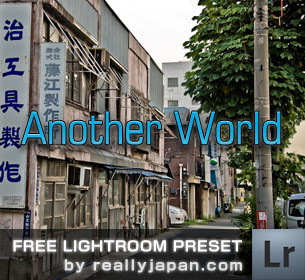
Another World Lightroom Preset

05 Mar

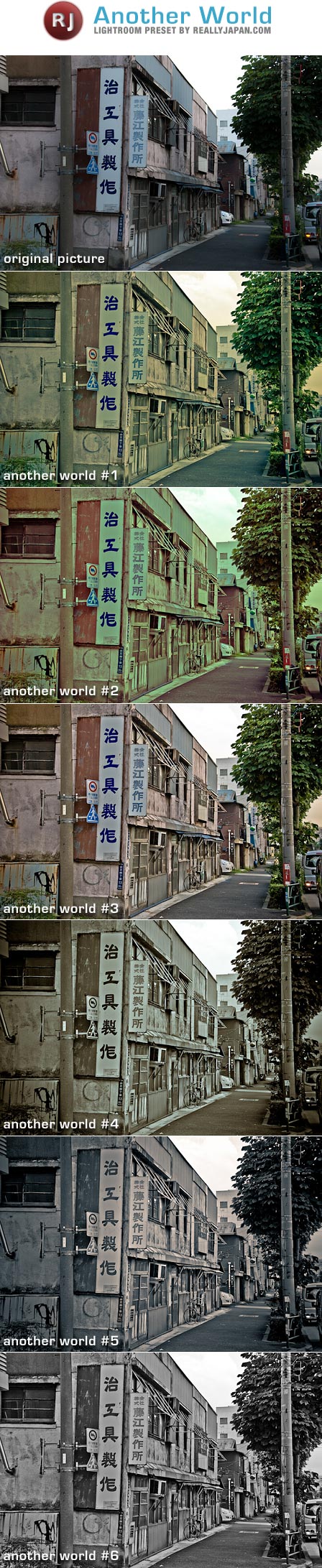
anotherworldpreviewA slightly HDR-esque set of Lightroom presets to enhance your photos.

The presets work better on images with many details and textures, also be aware that the effect is very strong, especially around the edges. You should probably adjust the fill light and restore values if you see some artifacts on the image.

Anyway, have fun with this preset!
preview_anotherw

How to install presets on Lightroom?

Click on Preferences, select Presets tab and click on Show Lightroom Presets Folder… button.Uncompress the ZIP file, move the folder in the Lightroom Presets Folder/Develop Presets and relaunch Lightroom.
Download  Another World Free Preset for Lightroom


The Sprawl Lightroom Preset

21 Feb

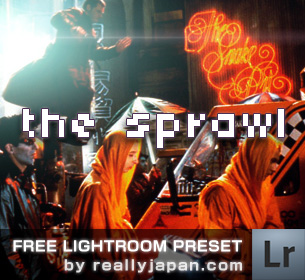
sprawlI love cyberpunk. Since I was a kid I’ve always wanted one of those brain implants to connect to the cyberspace (if I think about it right now.. jeez, having a brain implant to do what.. connect your brain to facebook or myspace?.. ah the ‘cyberspace’ is not so cool anymore).
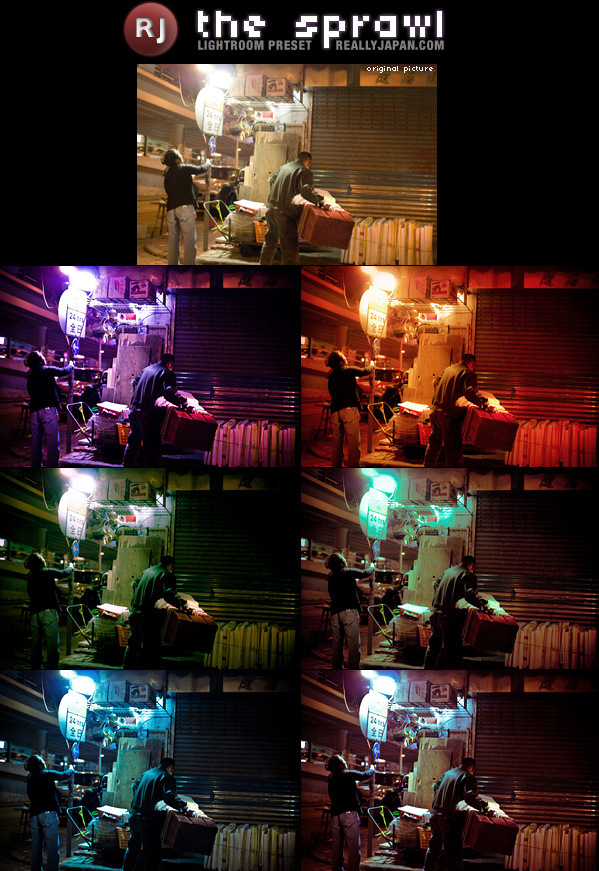
Anyway, I made this Lightroom preset trying to recreate the world in William Gibson’s novel Neuromancer and the Sprawl trilogy, or maybe Blade Runner.
Again, it’s a preset for night photography.

preview_sprawl

How to install presets on Lightroom?

Click on Preferences, select Presets tab and click on Show Lightroom Presets Folder… button.Uncompress the ZIP file, move the folder in the Lightroom Presets Folder/Develop Presets and relaunch Lightroom.
Download  The Sprawl for Lightroom


Nocturnus Lightroom Preset

20 Feb

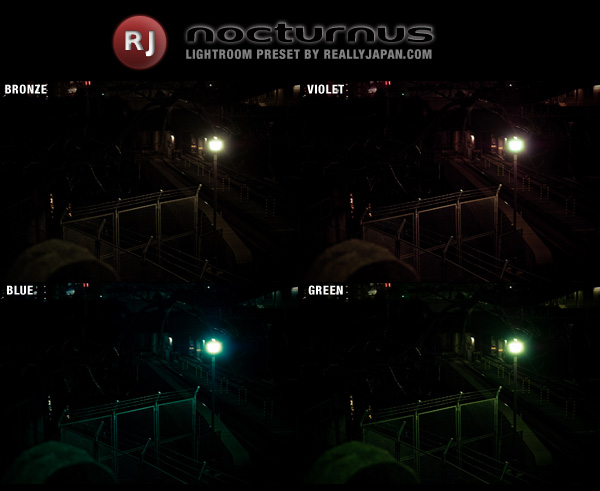
nocturnusI usually take photos in low light conditions, especially at night. And the places I like the most are usually very dark streets, with just a small light lighting up the scene.. just give a look to the photoblog to get what I mean..

Anyway, I’ve decided to release a Lightroom preset I use for this kind of shots (very dark shot with just a light): Nocturnus.

I’ve just used this preset for my last photo on ReallyJapan.com, and I can assure you it works pretty well, just apply the preset on  dark street shots!

nocturnusprev

How to install presets on Lightroom?

Click on Preferences, select Presets tab and click on Show Lightroom Presets Folder… button.Uncompress the ZIP file, move the folder in the Lightroom Presets Folder/Develop Presets and relaunch Lightroom.
Download  Nocturnus for Lightroom


Cinematic Lightroom Preset

15 Feb

cinematicIn this Kit you’ll find 4 different presets I’m using often as a starting point to process my pictures with a “cinematic”  look.

Cinema 1 – High contrast, rich black, low saturation (except for the red), semi-hdr treatment.

Cinema 2 – Similar to cinema 1 but slightly brighter and using a duotone violet/blue.

Cinema Warm & Cool – I use a lot the cool version 


preview

How to install presets on Lightroom?

Click on Preferences, select Presets tab and click on Show Lightroom Presets Folder… button.?Uncompress the ZIP file, move the folder in the Lightroom Presets Folder/Develop Presets and relaunch Lightroom.

Download  Cinematic Kit for Lightroom 


Daido Moriyama Lightroom Preset

15 Feb

 daidoWhat happens when you want to take street photos but it’s almost night, you’re not using a tripod and don’t like to hug a traffic light to avoid camera shake?

Just that you get frustrated, bored, and a Zeiss 50mm/0.7constantly comes to you in your dreams.

But don’t let that devil’s tool called tripod tempt you, there’s a solution to take photos at night, with high shutter speed and having a lot of fun. It’s called: The Daido Moriyama Kit by ReallyJapan.

First of all, Daido Moriyama is a Japanaese photographer I kinda like because his street photographs are gritty, harsh, raw, very analogish, punk in some way. 

This style is pretty cool, and works pretty well with grainy, high iso shots.

Now, let’s open the DM Kit and let’s build the perfect low-light-fun machine, here’s what you need to do:

  • Set your camera to RAW (so, couldn’t care less what you see in the display of your camera, it’s just for your pleasure, what you’re saving is the original, not processed raw image)
  • Change the setting in your camera from the “better safe than sorry” color mode to Black and White, Highest Contrast, Highest Sharpness (we’re using RAW, so no worry)
  • Set your ISO to anything between 1600 and H3/3200.
  • Set your camera to Shutter Speed Priority
  • Set exposure compensation to -0.3/-0.7 (to preserve the highlights)
  • Set your shutter speed to 1/125 or 1/400 for super-speed shooting
  • Go and act wild! Take photos of everything you see, don’t look through the viewfinder, just point the camera and shoot, shoot while walking, go fast, very fast! 

I don’t know if that works for you, but for me it’s a really refreshing technique. As soon as I get too stressed trying to take good, non grainy shots, I turn on the Daido Moriyama style and I have a lot of fun.

Now, how do you process this shots?
Well, I’m gonna give you some presets for Lightroom! If you wonder how those presets look like, take a look of this shots in the photoblog:

How to install presets on Lightroom?

Click on Preferences, select Presets tab and click on Show Lightroom Presets Folder… button.
Uncompress the ZIP file, move the folder in the Lightroom Presets Folder/Develop Presets and relaunch Lightroom.


Download the free Lightroom preset here: moriyama_kit
